Smart Home Setup UX: Onboarding Devices Without the Support Tickets
The device is bought; the app is judged in the first ten minutes. Designing smart home setup that survives bad Wi-Fi and impatient users.
Smart Home Setup UX: Onboarding Devices Without the Support Tickets
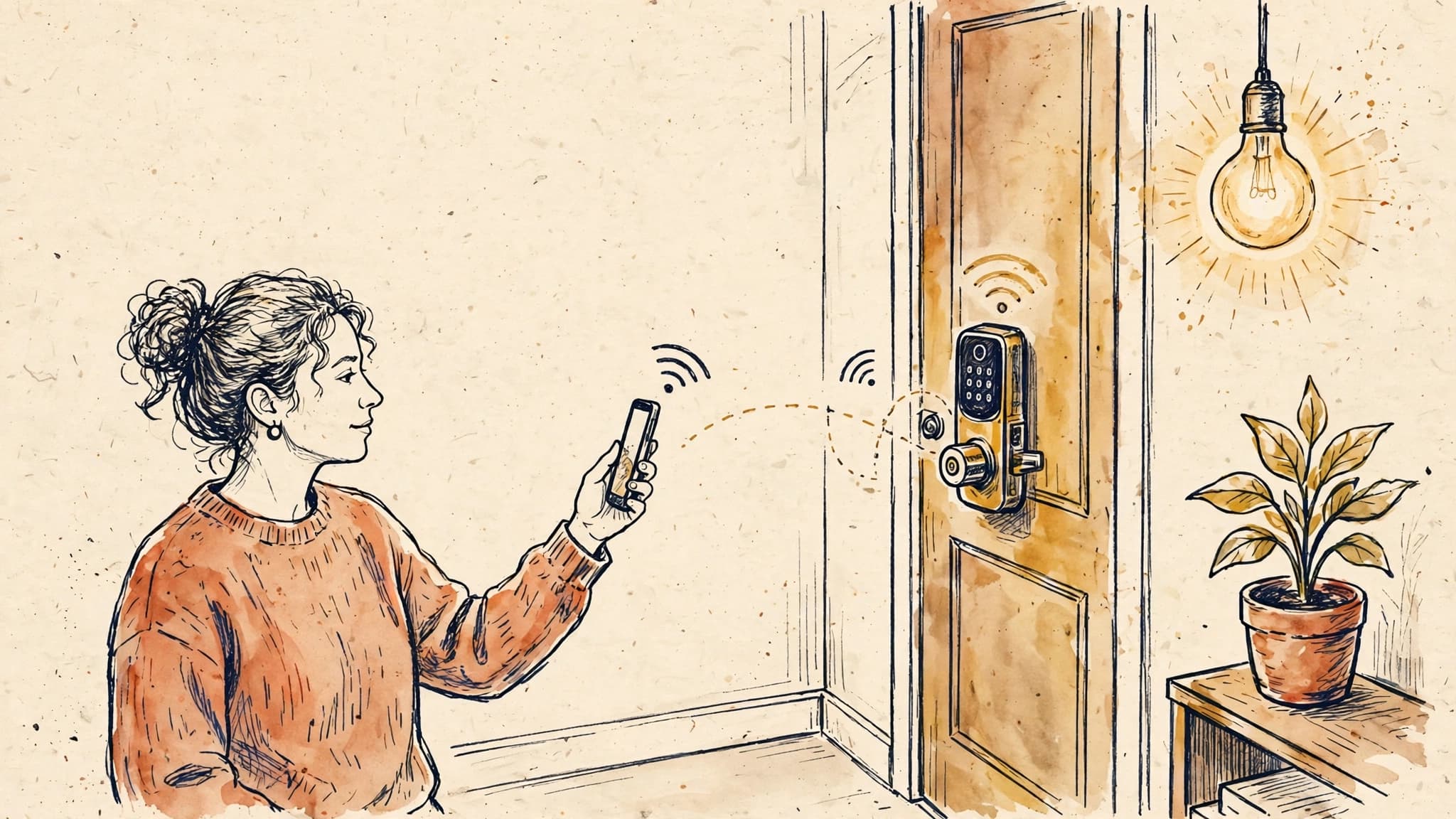
The smart home sale is already won before your app opens. Someone bought a lock, a thermostat, or a light bulb, brought it home, and is now standing in their hallway, phone in one hand, device in the other, expecting it to just work. What happens in the next ten minutes decides more than the device's rating. It decides whether they buy a second device, whether they recommend the brand, and whether your support team spends the afternoon answering the same ticket for the hundredth time.
Most smart home teams treat setup as an engineering checklist: Bluetooth pairs, Wi-Fi connects, firmware updates, done. Users experience it as a single emotional verdict: this brand respects my time, or it does not. The gap between those two views is where support tickets are born. Closing it is a product problem first and a protocol problem second.
Why setup fails, and why it feels worse than other onboarding
Every app onboarding asks for patience. Smart home setup asks for patience while the user is physically inconvenienced. They are on a ladder, or crouched behind a router, or holding a phone with one hand while pressing a tiny reset button with the other. There is no comfortable chair, no second monitor, no "I'll finish this later" — later means the device sits dead on the counter.
Four failure modes account for the vast majority of setup pain:
The Wi-Fi handoff. The phone must leave the home network, join the device's temporary network, pass credentials, then rejoin the home network. Any step can stall silently. On iOS and Android, the OS may refuse to join a network with no internet, drop back to cellular, or show a system dialog the app cannot control. The user sees a spinner and assumes the app is broken. Often the app is fine; the handoff is not.
The 2.4 GHz trap. Many devices only speak 2.4 GHz Wi-Fi, while modern routers broadcast a single network name for both 2.4 and 5 GHz. The phone sits happily on 5 GHz, the device cannot see the network it needs, and the error message — if there is one — says something unhelpful like "connection failed." The user cannot fix what they cannot diagnose.
The credential problem. Setup asks users to type a Wi-Fi password they set years ago, on a phone keyboard, while standing in a hallway. Password managers help, but only if the flow lets users paste or autofill. Flows that block pasting, hide the password field behind a custom keyboard, or demand retyping after every failure turn a 30-second task into a five-minute one.
The silent firmware update. The device connects, then immediately downloads firmware. The app shows a generic progress bar for six minutes. The user, convinced it has frozen, force-quits, unplugs the device, and starts over — corrupting the update and creating a ticket that reads "bricked out of the box."
None of these are exotic. Every smart home team has seen all four. The product question is not whether they happen, but how much of the damage your flow prevents, explains, or recovers from.
Principle 1: Show the system, not the spinner
The single highest-leverage setup improvement is replacing indeterminate waiting with a visible, honest state machine. Users tolerate waiting far better than uncertainty. "Connecting to your device" with a spinner says nothing. A four-step progress display — finding the device, joining its network, sending Wi-Fi credentials, finishing setup — tells the user where they are, what just succeeded, and what is stuck.
This matters most when something fails. If step two fails, the user knows the phone never joined the device's network, which points at Bluetooth permissions or a system dialog they dismissed. If step three fails, the credentials or the band are suspect. A generic error wastes that diagnostic information and forces support to re-derive it over email.
Good setup flows also say what is happening in plain language and how long it should take. "Updating firmware — this takes about 4 minutes, please keep the app open" prevents the force-quit that creates bricked devices. "Your phone will briefly disconnect from Wi-Fi — this is normal" prevents panic during the handoff. Every sentence like this is a support ticket that never gets filed.
Principle 2: Fail at the cheapest moment
Setup flows tend to validate too late. They collect the Wi-Fi password, run the whole pairing sequence, and only then discover the network is 5 GHz-only, the password is wrong, or the device needs a firmware update that requires a different app version. Each late failure costs the user a full retry.
Push validation as early as possible:
- Check the band before pairing. If the phone is on 5 GHz and the device needs 2.4 GHz, say so before the user starts, and explain how to proceed: temporarily disable band steering, use a guest network, or check the router app. A pre-flight check beats a post-failure error every time.
- Validate the password format early. Length, characters, and empty-string checks are trivial and save a full cycle.
- Check app and firmware compatibility before the handoff. If the device requires a newer app version, say so on the first screen, not after pairing fails.
- Confirm permissions before they are needed. Bluetooth, local network, and location permissions (required on Android for Wi-Fi scanning) should be requested with a priming screen that explains why, not sprung mid-flow as a system dialog the user reflexively denies.
Early failure is not a worse experience. It is a shorter one, and users forgive short failures far more readily than long ones.
The flow that works: a practical sequence
Pulling these principles together, a strong setup flow looks roughly like this:
Before pairing starts
One screen, three things: what the user needs (device powered on, phone near the device, Wi-Fi password handy), how long it takes (typically 3–5 minutes), and the one precondition that matters (2.4 GHz network, if applicable). Include a "find my Wi-Fi password" hint — many users will need it, and sending them to the router settings mid-flow is a guaranteed drop-off.
Pairing and handoff
Use QR codes or Matter setup codes wherever possible. Scanning a code beats typing a serial number or hunting for a device in a Bluetooth list, and it eliminates an entire class of typos. When a manual step is unavoidable — pressing a button for five seconds, for example — show a short animation of the exact button on the exact device, not a generic illustration. Users with three similar-looking devices in a drawer need specificity.
During the handoff, narrate the process. "Your phone is joining the device's temporary network. You may briefly lose internet — that's expected." On iOS, where the system may prompt about joining a network without internet, warn users in advance so they tap the right option instead of dismissing the dialog.
Wi-Fi credentials
Let users paste and autofill. Show the network name the phone is currently on, pre-filled, with an easy way to change it. If the current network is 5 GHz and the device needs 2.4 GHz, flag it here, before credentials are sent, with a concrete next step rather than a dead end. Offer a "try a guest network" path for users whose routers merge bands.
Firmware and naming
After connection, do the firmware update immediately — but frame it. Show progress honestly, including the estimated time, and warn users not to unplug the device. Then, and only then, ask the user to name the device and assign it to a room. Naming before the device works is premature; naming after success feels like a reward. Keep room assignment to one tap from a short list, with a sensible default (the room is often inferable from the device type or the phone's location, but never auto-assign without confirmation).
The first success moment
End setup with the device actually doing something: a light turning on, a lock clicking, a thermostat displaying the current temperature. This is not decoration. It is proof. A user who sees the device work in the first minute after setup has a fundamentally different relationship with the product than one who sees a checkmark and is told to "try it out."
Matter changed the pitch, not the reality
Matter, the cross-platform smart home standard, genuinely improves setup: a single setup code, multi-admin support so one device can live in two ecosystems, and a shared commissioning flow. For product teams, it reduces the "which app do I use" confusion that plagued early smart homes.
It does not eliminate the problems above. Matter commissioning still crosses Bluetooth and Wi-Fi, still depends on the home network, and still fails in ways users cannot diagnose. Teams that treat Matter as "setup solved" will ship the same spinner with a new logo. The product work — visible states, early validation, plain-language recovery — is unchanged. Matter lowers the floor; it does not raise the ceiling.
The other Matter reality is ecosystem fragmentation in practice. A device may support Matter but lose vendor-specific features outside its own app. Product teams must decide, and communicate clearly, what works in each ecosystem and what requires the native app. Users who discover after setup that their favorite feature needs a second app feel tricked, and that feeling shows up in reviews.
Multi-device households: setup is never one device
First-device setup gets all the design attention. Second, fifth, and twentieth-device setup is where retention lives. A user who already owns three of your devices should never repeat the full flow. Their Wi-Fi credentials are known. Their rooms exist. Their account is signed in.
Good multi-device flows reuse everything reusable: pre-filled network, one-tap room assignment from existing rooms, bulk setup for multi-packs (four bulbs should not mean four identical flows), and a "same as the last device" shortcut. The marginal cost of each additional device is the real retention metric for smart home brands — every extra minute of setup friction is a reason to buy the competitor's bulb next time.
Household sharing deserves the same attention. Smart homes are shared spaces, and setup that assumes one owner creates friction fast: a partner who cannot control the lights, a guest who needs an account to open the door, a child who can accidentally factory-reset the thermostat. Design roles early — owner, household member, guest — and make adding a person as easy as adding a device. The household that shares happily buys more devices.
When setup stalls: recovery is the product
No flow prevents every failure, so recovery design matters as much as happy-path design. Three rules:
Never make the user start over blindly. If setup fails at step three, resume from step three, or at most from a clearly labeled checkpoint. Full restarts teach users that the product is fragile and their time is worthless.
Offer a diagnostic, not a dead end. "Connection failed" is not an error message; it is an abdication. Better: "We couldn't reach your Wi-Fi network. This usually means the password is wrong or the network is 5 GHz-only. Check the password, or try a 2.4 GHz network." Link to a help article that matches the specific failure, not the generic support homepage.
Provide an escape hatch that actually works. A "try a different method" option — manual setup, a different pairing mode, or setup via a hub — gives stuck users a path forward instead of a support ticket. And when the user does contact support, the app should be able to share a setup diagnostic log with one tap. Support teams that receive "setup failed at step 3, network X, error Y" resolve tickets in minutes; teams that receive "it doesn't work" spend days.
Measuring setup like a product metric
Setup quality is measurable, and teams that measure it improve it faster than teams that rely on support ticket anecdotes. The metrics that matter:
- Setup completion rate: the share of started setups that finish. Segment by device model, app version, and OS — a completion dip on one Android version is a bug report, not a trend.
- Time to first success: median and 90th percentile minutes from starting setup to the device working. This is the number users feel.
- Attempts per success: how many retries the average successful setup takes. More than 1.3 attempts means the flow is failing silently somewhere.
- Support contacts per setup: tickets tagged setup-related divided by setups started. This is the metric that justifies setup investment to leadership, because it has a dollar figure attached.
- Second-device rate: the share of users who set up a second device within 90 days. Setup friction shows up here before it shows up in churn.
Instrument every step, not just start and finish. Per-step drop-off is the map that tells you which screen to redesign next.
What not to build
A few tempting shortcuts backfire consistently. Do not gate setup behind account creation if the device can work without one — let users set up first and create an account when they see value. Do not require a firmware update before the user can try the device at all, unless the update is genuinely required for safety. Do not hide the "skip" option for optional steps like tutorials and room tours; forced tours during setup are how users learn to hate your app. And do not redesign setup in isolation from support: the support team's top ten setup tickets are the best product spec you will ever get, and they are free.
Takeaways
Smart home setup is the product's first impression, delivered under the worst possible conditions: bad Wi-Fi, impatient users, and hardware that cannot explain itself. Teams that win here do a few unglamorous things well. They show the system instead of a spinner, so users know where they are and what failed. They fail early and cheaply, validating bands, passwords, and permissions before the long handoff. They use QR and Matter codes instead of typed serials, let users paste passwords, and frame firmware updates honestly. They make the second device faster than the first, design household sharing from the start, and build recovery paths that resume rather than restart. Measure completion rate, time to first success, and support contacts per setup — and treat the support queue as the roadmap. The device is bought in the store. It is kept, recommended, and multiplied in the first ten minutes at home.